
Getting started
Your account, the free trial, lumens, plans and where to get help.
Lumière has two halves. Studio makes something: a long recording goes in, a finished, subtitled video or an editor timeline comes out. Compliance checks something: a video goes in, a list of findings and a report come out. LumiVision is an add-on that looks after a whole archive.
You always stay the editor. Lumière does a first pass and shows you every decision, and you can change any of it.
Create your account
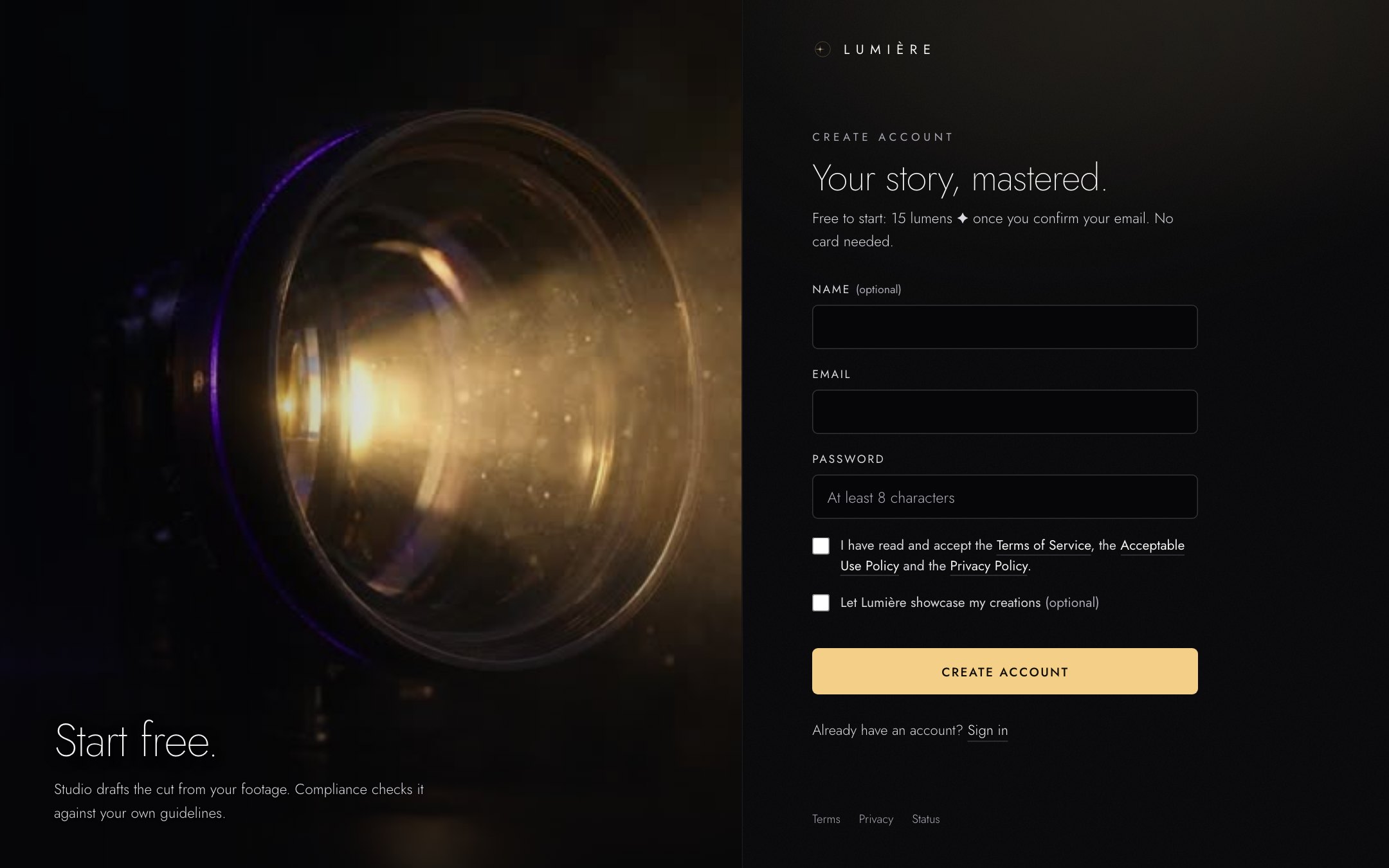
To create an account:
- Open app.lumiereapps.com/signup, or press Start free on lumiereapps.com.
- Enter your email address and a password of at least 8 characters. Your name is optional.
- Tick the box to accept the Terms of Service, the Acceptable Use Policy and the Privacy Policy. The second box, Let Lumière showcase my creations, is optional.
- Press Create account.
Throwaway email addresses are not accepted. Use an address you read: invoices, receipts and replies from support go there.
Confirm your email
After you sign up, Lumière sends you a confirmation link. The link works for 24 hours.
Until you confirm, you can sign in and look around, but Studio and Compliance stay closed and your free lumens wait. Your account page shows a banner: Confirm your email to start using Studio and Compliance and to receive your free lumens.
If the email does not arrive:
- Check your spam folder.
- On your account page, press Resend email in the banner.
The free trial
Every new account starts on the Trial plan:
- 15 ✦, once, added when you confirm your email.
- One seat (one person).
- No card needed. Nothing is charged unless you buy a plan or a pack.
15 ✦ is enough to draft a cut from a few short clips, or to check a 15-minute video in Compliance.
Lumens ✦: what you pay with
Lumière has one unit: the lumen ✦. Everything is priced in it.
1 ✦ pays for one started minute of source footage through the whole pipeline. A 40-second clip costs 1 ✦, a 90-second clip 2 ✦, a 12-minute interview 12 ✦. What counts is the length of what you put in, not the length of what comes out.
| What | Price |
|---|---|
| Drafting a cut in Studio (Draft the cut) | 1 ✦ per started source minute, every draft |
| A Compliance scan | 1 ✦ per started minute scanned, at least 1 ✦ |
| A thumbnail (cover image) | 8 ✦ per image |
| Dubbing | priced from the length of the transcript, shown before you start |
| AI-generated music and other generated media | priced per item, shown before you generate |
| Upload, transcription, summary, transcript, Ask | free |
| Edit script, Review & trim, subtitles, translation | free |
| B-roll from your own footage and from free stock footage | free |
| Rendering, other formats, editor export, compliant master | free |
You always see the price before you agree to it. The button that starts a paid job carries the price, for example Draft the cut · 2 ✦.
What happens when a job does not go as planned:
- A draft that fails, or that finds nothing usable for your brief, is refunded.
- A draft you stop is not refunded, but your next draft of the same project is included.
- A Compliance scan you cancel is charged only for the part already analysed. The rest is refunded.
- A thumbnail that fails is refunded.
When a job costs more than you have
On every plan, a job that needs more lumens than your balance stops before it starts. A window shows the price, your balance, how much is missing and the packs you can buy. After the top-up, the same job continues with the same settings. Nothing is ever charged beyond the lumens you have.
On a team, only the owner buys lumens. Everyone else sees who to ask, and their work is kept while they wait.
Limits that protect your balance
So that one mistake cannot empty an account:
- A single job above 100 ✦ asks you to confirm it.
- A single job above 500 ✦ needs the owner to allow it once.
- Each plan has a limit per 24 hours and a lower hourly limit for AI generation (thumbnails, dubbing, generated media).
- Very many charges in a few minutes pause new charges for about ten minutes.
| Plan | Per 24 hours | AI generation per hour |
|---|---|---|
| Trial | 20 ✦ | 15 ✦ |
| Personal | 120 ✦ | 60 ✦ |
| Creator | 400 ✦ | 150 ✦ |
| Studio | 1,500 ✦ | 500 ✦ |
| Broadcast / Enterprise | set by contract | set by contract |
Limits hold back new jobs only. Anything already running finishes. The owner can raise them, see Spend limits.
Plans and packs
| Plan | Price | Lumens | Seats |
|---|---|---|---|
| Trial | €0 | 15 ✦ once | 1 |
| Personal | €19 a month | 60 ✦ every month | 1 |
| Creator | €49 a month | 200 ✦ every month, plus AI image and music generation | 1 |
| Studio | €149 a month | 1,000 ✦ every month | 3 |
| Broadcast / Enterprise | from €499 a month | from 3,500 ✦ a month, by annual contract | by contract |
Prices exclude VAT where VAT applies. Consumers in the EU pay the VAT rate of their country. Broadcast / Enterprise is contract only: press Talk to us on the plans page.
Top-up packs add 100 ✦, 500 ✦ or 2,000 ✦ to your balance. The price per lumen depends on your plan: higher plans pay less. Your account shows the packs and prices for your plan under Usage & billing → Top-up packs. Packs never expire while you are subscribed.
To change your plan:
- Open your account and press Change plan (or go to Plans & pricing).
- Pick a higher plan to upgrade. An upgrade takes effect at once.
- A smaller plan applies at your next renewal. Write to us to switch.
To cancel your plan, write to us as well. Cancelling from your account Coming is not available yet.
Find your way around
After you sign in you land on your account page. Everything that is not editing lives here.
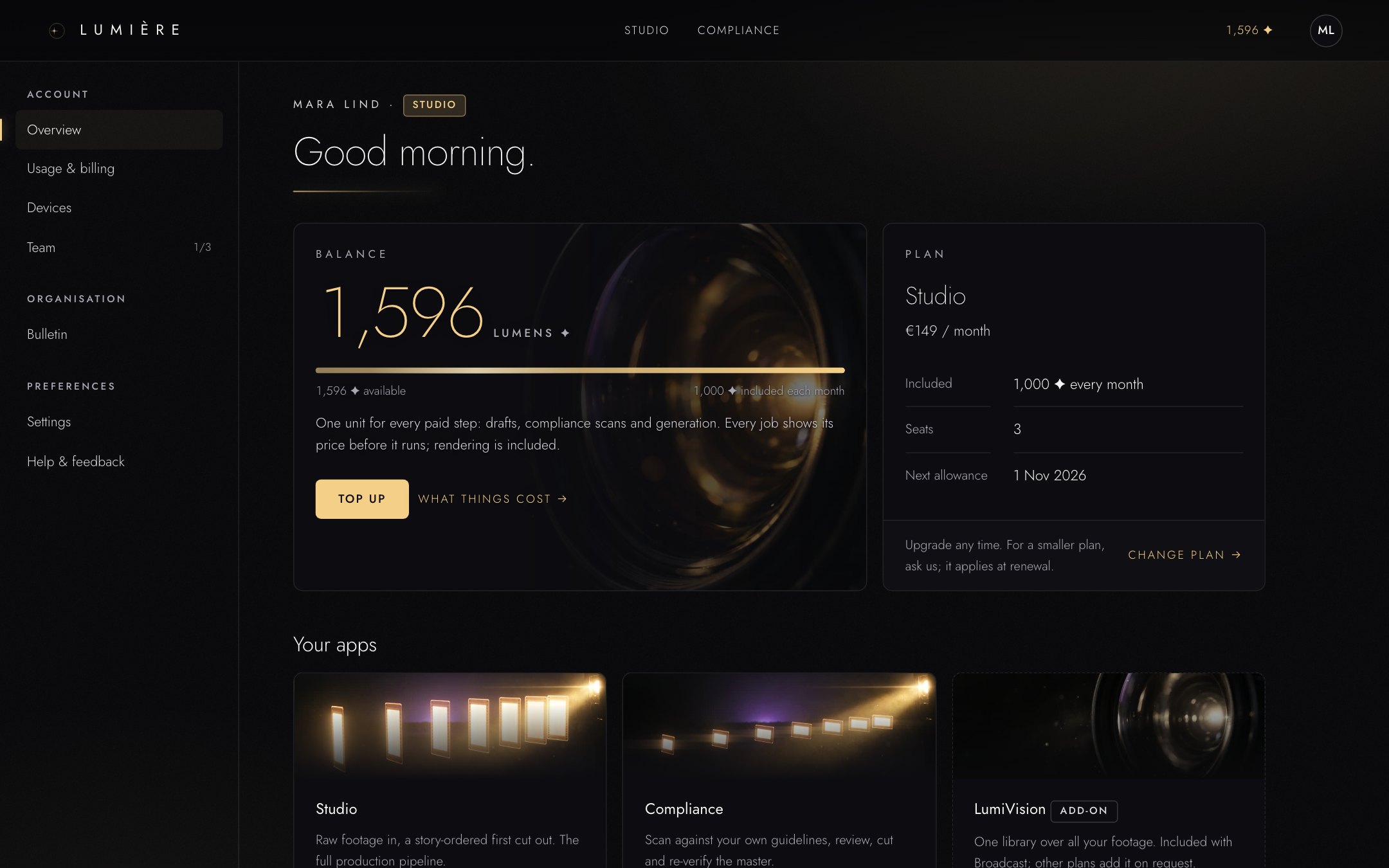
- Your balance in lumens. Top up buys a pack; What things cost lists the prices.
- Your plan, the lumens it includes each month and the date of your next allowance. Change plan opens the plans page.
- The side menu: Overview, Usage & billing, Devices, Team, Settings and Help & feedback.
- The two apps: Studio and Compliance. Your balance is always visible in the top bar.
Explainers
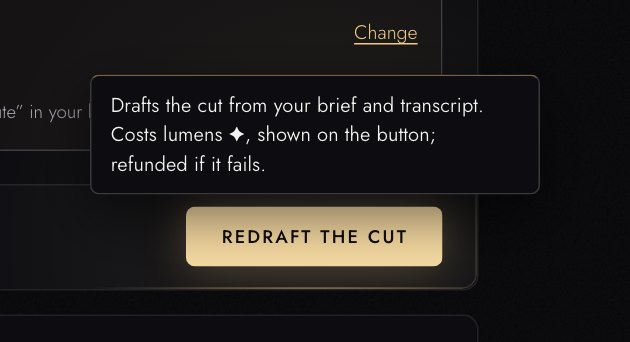
Every button in Studio, Compliance and your account has a short explainer: a note that says what the button does.
- Rest the pointer on a button for a moment (about 0.7 seconds).
- Or move to it with the Tab key.
- On a phone or tablet, press and hold it.
Explainers are on for everyone and come in 32 languages. Choose your language, or switch them off, under Settings → Explainers & help. The buttons keep their English names, so the note always matches what you see.
Get help
The help chat answers questions about Lumière at any time.
- Open Help & feedback in your account.
- Press Open help chat.
The help chat is an AI assistant. It answers from Lumière’s help content and replies in your language. When it is not sure, or when you need something only a person can do (a refund, a plan change, deleting your account), it opens a ticket and a person on the team follows up by email.
Tell it the project name and which step you are on. That is what makes a useful answer possible.
You can also write to us at hello@lumiereapps.com.
Studio, step by step
From a raw recording to a finished video or an editor timeline.
Studio turns a long recording into a short, finished piece. You bring footage and a sentence about what you want. Lumière writes down every word, finds the parts that match your brief, puts them in order, and hands you the cut to correct.
The Studio screen
Studio is a list of steps down the left side, in four groups:
- Prepare: Projects, Import
- Story: Understand, Brief, Edit script, Review & trim
- Finish: B-roll, Subtitles, Music, Branding, Thumbnail
- Deliver: Download & hand-off
You do not have to use every step. Import, Brief, Review & trim and Download & hand-off are the spine; the rest are there when you want them. You can go back to any step at any time.
The program monitor on the right plays the current cut. The timeline at the bottom shows it clip by clip. Both follow every change you make. Second screen opens the program monitor in its own window, for example on a second display. Hide timeline gives the step more room.
A few tasks still live in the older one-page editor: dubbing, importing from your own computer, and reviewing B-roll clip by clip. Studio says so when it sends you there, and Open in classic editor at the bottom of the step list takes you there at any time. Show the guide replays the short introduction.
Projects
To start a project:
- Open Studio from the top bar.
- Type a name under New project name. Use a name you will recognise in a long list.
- Press Create project.
Your projects are listed below. Click one to pick up where you left off. New projects are private to you until you share them with your team.
Delete a project
Delete on a project removes its footage, transcript, cut and renders from Lumière’s servers. Studio asks first: The footage, transcript, cut and renders are deleted from Lumière’s servers. This can’t be undone. Lumière never deletes a project on its own.
Import
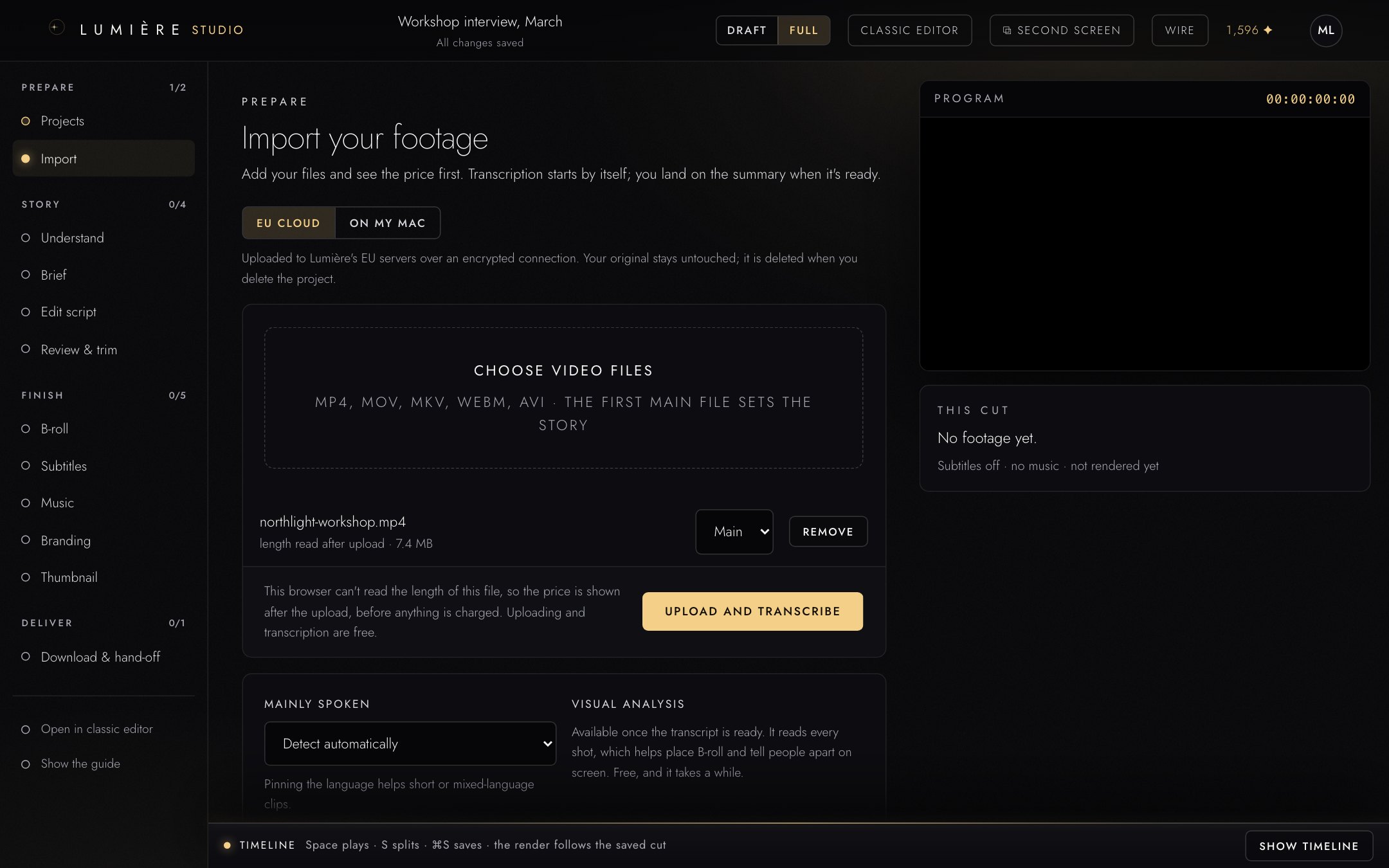
- Choose where your footage is processed: EU cloud or On my Mac.
- Choose video files: MP4, MOV, MKV, WebM or AVI.
- Mark one file as Main. Other files can be B-roll.
- Upload and transcribe starts the upload. The step list on the left shows how far you are.
EU cloud
Your files are uploaded to Lumière’s servers in the EU. This works in any browser, on any device, phones and tablets included. Large files are fine: they upload in pieces. If an upload fails, choose the files again. Nothing has been charged.
Set Mainly spoken to the language of your footage if the automatic choice is wrong.
Transcription starts by itself as soon as the upload completes. It is free. When it is done you land on Understand. If your balance is at zero, transcription waits and Studio shows a Transcribe · free button instead.
On my Mac (Lumière Local) Early access
With the Lumière desktop app installed and paired, your footage stays on your computer. Only the transcript, which is text, travels to the cloud. Use this for unreleased or sensitive material.
When you choose On my Mac, Studio looks for the desktop app and tells you what it found:
- Looking for the Lumière desktop app on this Mac: it is checking.
- Desktop app found, with the name of your device: press Open the local import. The local import runs in the classic editor for now.
- The desktop app isn’t answering on this Mac.: start the app, then press Check again. If you have never paired it, press Pair from your account.
How to install and pair the app: see Lumière Local.
Understand
Three tabs show what is in your footage. Everything here is free.
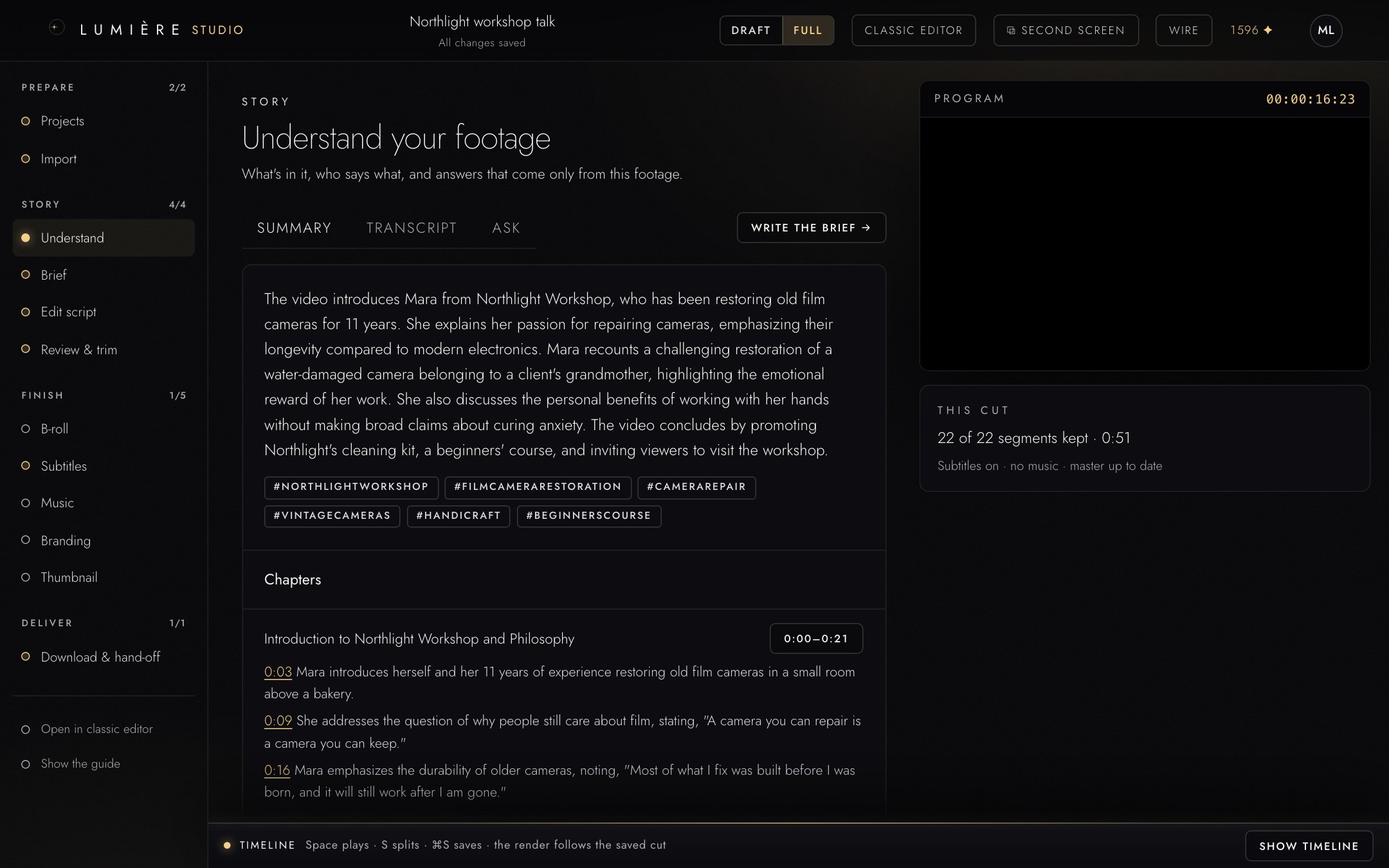
- Summary, Transcript and Ask.
- Write the brief takes you to the next step.
- Summary: press Write the summary. You get an overview, chapters and key moments with timestamps you can click.
- Transcript: every word with its timing. Download it as TXT or SRT.
- Ask: ask a question in your own words. The answer comes only from this footage.
Read the summary once. It is the fastest way to know what you have.
Brief
The brief decides how good everything after it will be. Write a sentence, not keywords. Say what the piece is about, who it is for, where it runs, what to keep, what to leave out, and how it should feel.
- Weak: interview highlights
- Strong: A one-minute social reel about why she repairs old film cameras. Keep the story of the grandmother’s camera and the moment it finally clicked. End with the free first lesson. Leave out the cleaning kit.
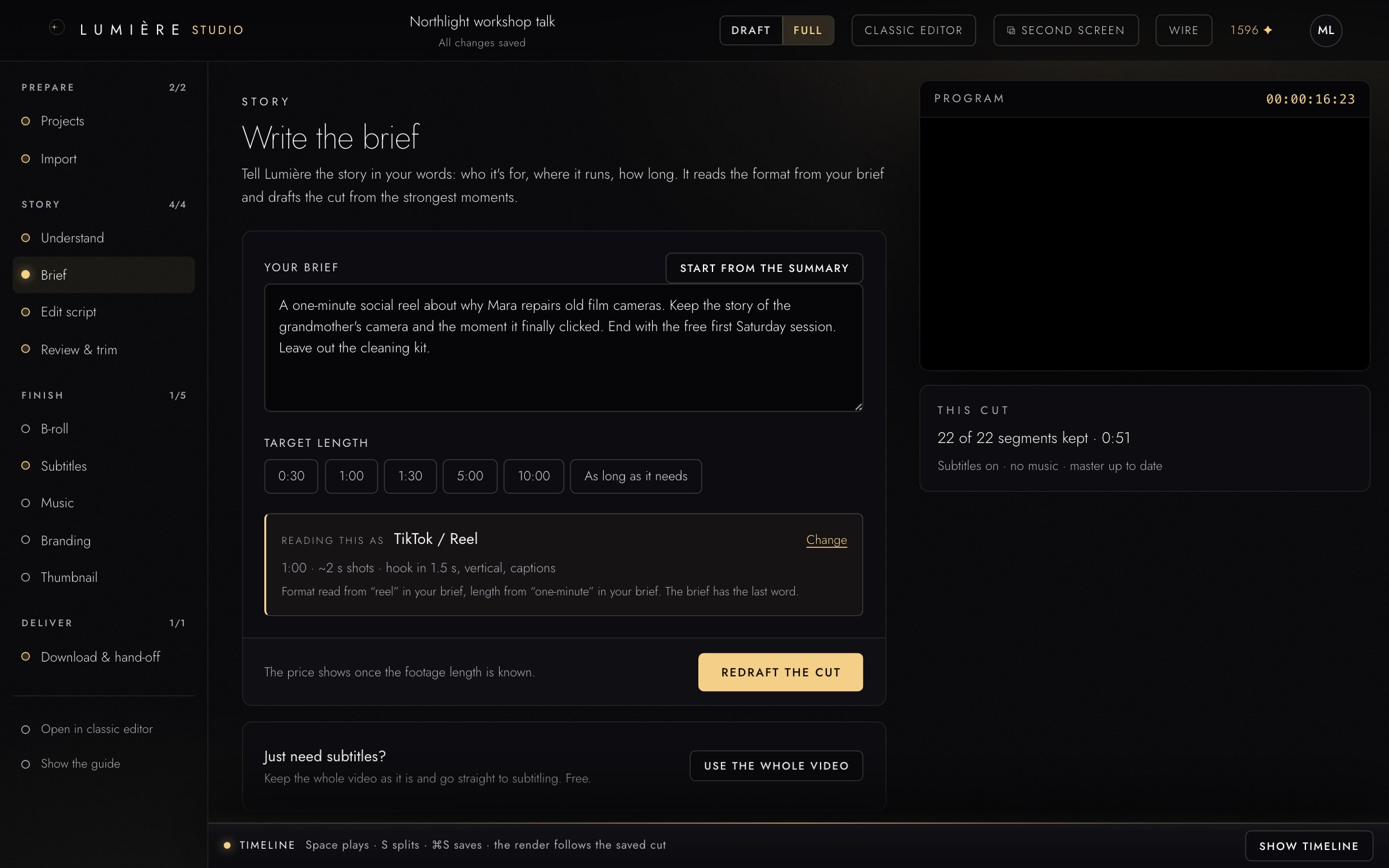
- Your brief. Start from the summary fills it with the summary as a starting point.
- Target length: 0:30, 1:00, 1:30, 5:00, 10:00 or As long as it needs. A length written in your brief, such as “a three-minute piece”, wins over the one you click.
- Reading this as: the format Lumière read from your brief and the length, with its pace. The line tells you which words it read the format from.
- The price of the draft, and Draft the cut.
Formats
A format is a set of editing conventions: a short social reel cuts hard and fast, a documentary lets scenes breathe. Lumière reads the format from your brief. Your brief always has the last word: ask a reel to “let it breathe” and the cuts stay long.
Press Change to pick another format yourself, to choose Only my brief (no conventions at all), or to use a house style you saved.
Draft the cut
- Check the price on the button, for example Draft the cut · 2 ✦.
- Press it. This is where lumens are spent: 1 ✦ per started minute of source footage.
- Wait while Lumière reads the whole transcript and builds the story. A progress line says what it is doing.
Stop ends a draft if you got the brief wrong. Your brief stays, and the next draft is included. If Lumière reports that it found nothing usable, your brief and your footage did not meet: nothing is charged for that run, so widen the brief and try again. Each new draft after a finished one (Redraft the cut) is charged again.
Just need subtitles on the whole video? Use the whole video skips the draft and goes straight to subtitles, free.
Edit script
The edit script is your piece as a list of beats in plain words: what is heard, what is seen, and why it was chosen. It also plans titles and B-roll. It is free.
- Press Draft the edit script.
- Read it like a script. For each beat you can Edit it, Redraft it, Revert it or Remove it. Redraft all starts the script again.
- When it reads right, press Approve. Approving locks the script; B-roll is planned from it.
Fix the story here, in words. It is cheaper than fixing it later in video.
Review & trim
This is where the cut takes its final shape, and the step most worth your time.
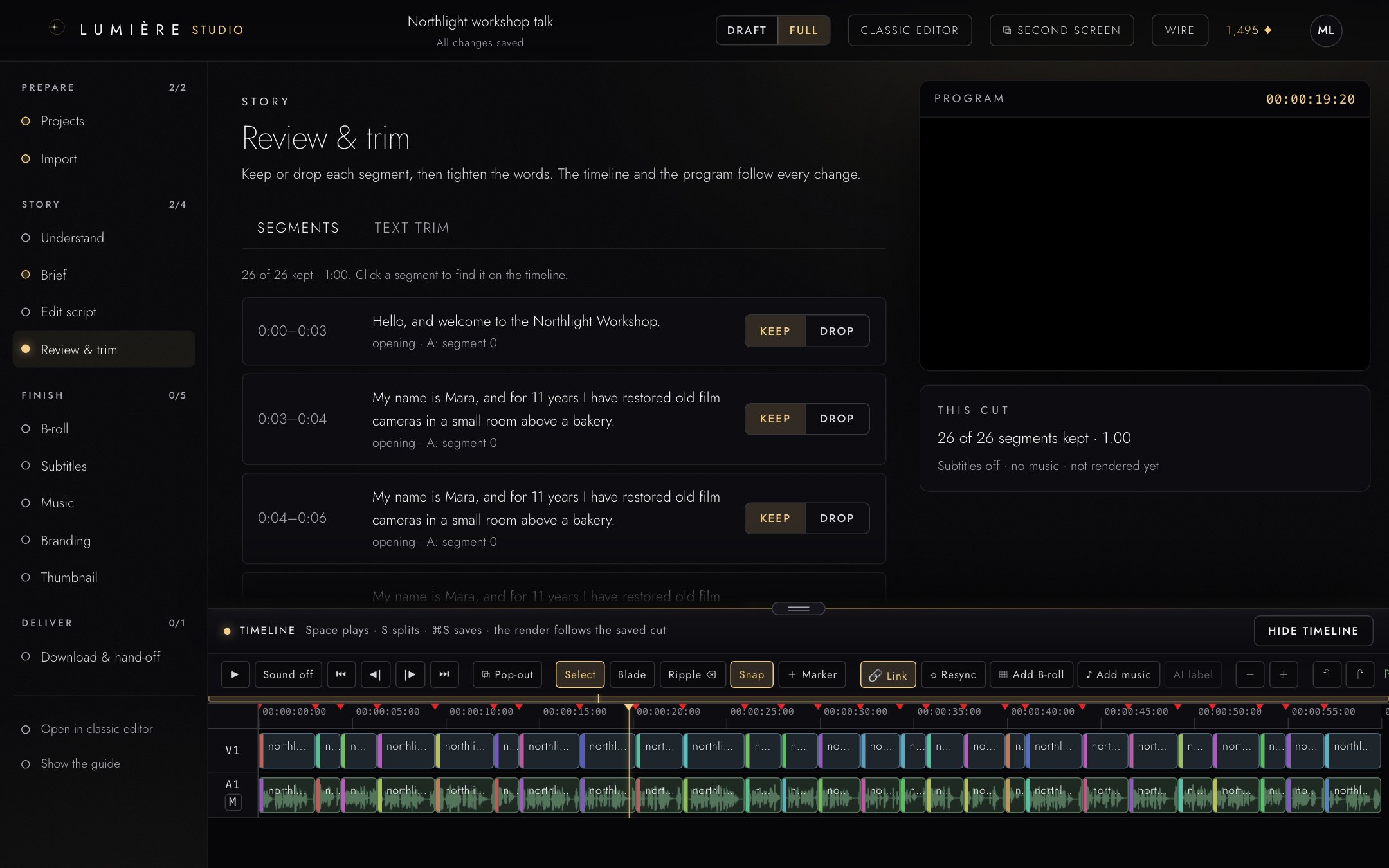
- Segments and Text trim: two ways to shape the cut.
- Keep or Drop each segment. Click a segment to find it on the timeline.
- The program monitor plays the cut as it is now.
- The timeline tools. Save stores your timeline edits.
- The timeline: video on V1, sound on A1.
Keep or drop segments
- Open the Segments tab.
- Press Keep or Drop on each segment. The timeline and the program follow at once.
- Reset decisions undoes your choices.
- When it plays right, press Looks right · continue.
Edit by striking words
The Text trim tab shows the transcript of your cut. Editing text edits the video.
- Click a word or a pause to cut it. Click it again to bring it back.
- Remove filler words cuts the “um” and “uh” sounds in one go.
- Tighten pauses shortens long silences across the cut.
- Restore every word undoes all text edits.
Text trim is free and uses no AI. It shows up to 3,000 words; for longer transcripts, Studio sends you to the classic editor.
Fine trims on the timeline
- Drag the edge of a clip to make it shorter or longer.
- Press Save (or ⌘S / Ctrl+S). The render follows the saved cut.
Useful keys: Space plays and pauses, S splits at the playhead. The toolbar also has Blade, Ripple, Snap and Marker, plus undo and redo.
Add B-roll and music on the timeline
The timeline has extra tracks above and below the main picture and sound: V2 and V3 for B-roll pictures, A2 and A3 for music and sound effects.
- Move the playhead to where the clip should start.
- Press Add B-roll (your own footage, stock or cliparts) or Add music (your own track, stock, AI-generated music or sound effects).
- Pick a clip. It lands at the playhead.
- Press Save.
What is on the timeline is in the video you download: B-roll on V2 and V3 is shown over the main picture at its place, and music and sound effects on A2 and A3 play at their place. A muted track stays silent.
The program monitor previews the extra tracks too. It starts silent: press Sound off in the transport to switch the sound on (it then reads Sound on). Your browser remembers the choice. The preview plays each clip at its volume but does not apply volume curves or ducking; the download does.
AI-generated music is priced in lumens before you generate it.
If the rhythm is wrong, go back to the brief. That is what it is for.
B-roll
B-roll is cutaway footage over the talking. It is planned from the approved edit script.
- Approve the edit script first.
- Open B-roll and press Make B-roll · free.
Lumière fills the beats that need it with your own footage first (the files you marked B-roll at import), then with free stock footage. Nothing is charged. AI-generated B-roll Coming is not available yet.
To swap, regenerate or approve clips one by one, press Open in classic editor. For a talking-head piece you can skip this step.
Subtitles
Subtitles and translation are free.
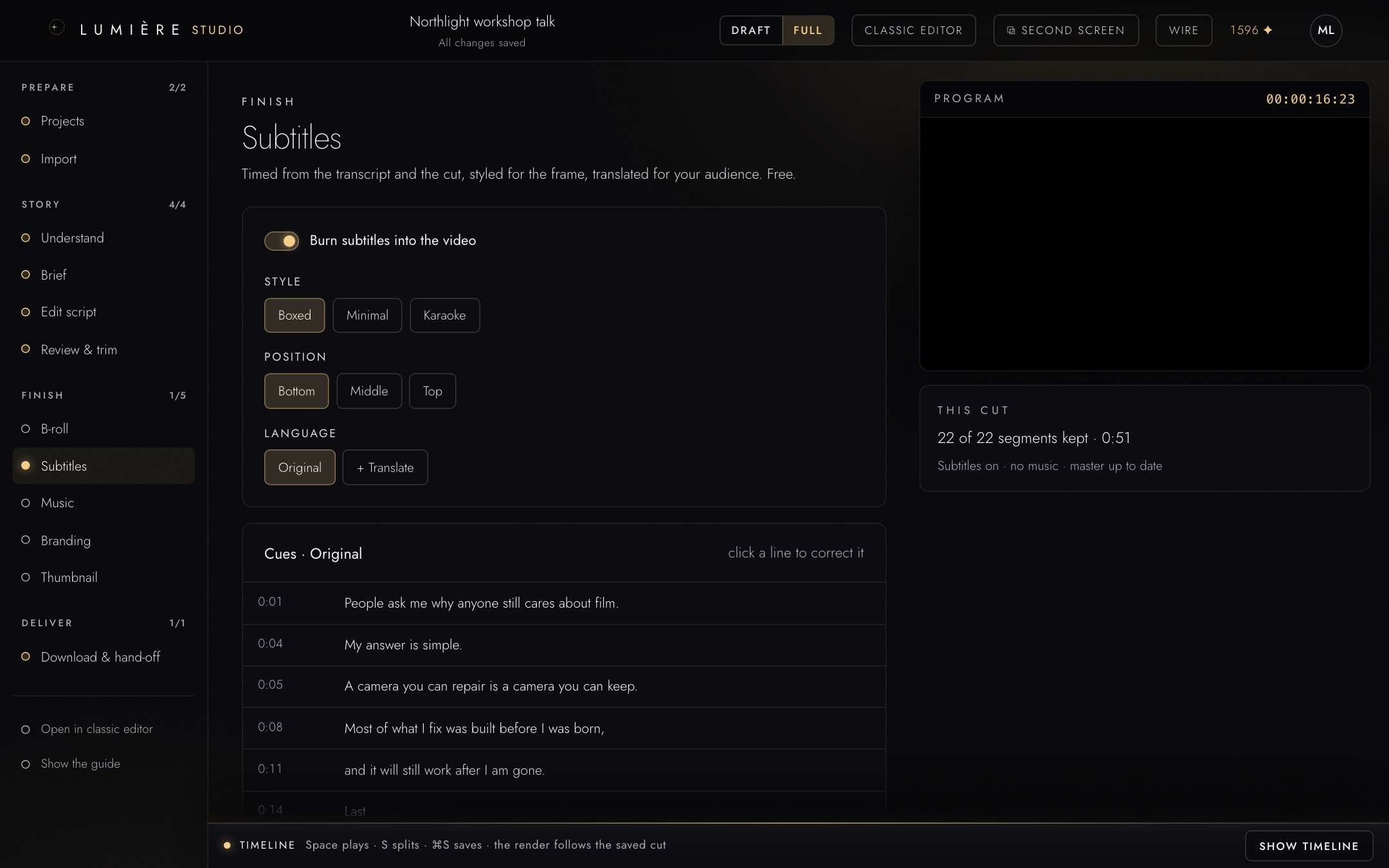
- Burn subtitles into the video: on, the subtitles are part of the picture (good for social media); off, they are delivered as a separate file that viewers can switch off.
- Style (Boxed, Minimal or Karaoke) and Position (Bottom, Middle or Top).
- + Translate adds a language.
- The subtitle lines. Click a line to correct it.
To create subtitles:
- Press Generate subtitles. They are timed to your cut, in the spoken language.
- Click any line to correct it, then press Save corrections. Your corrections go into every render and follow the cut when it changes.
- To add a language, press + Translate and pick one of 32 languages. You can carry several languages at once.
- Download any language with Download SRT or Download TXT.
Correct last. Generate again starts over from the transcript, and translating times the original again from the transcript, so both replace your hand corrections. Studio asks before a translation does. Correct names, jargon and place names once the cut and the languages are settled.
Lumière does not notice subtitles that are already burned into your footage. If your source has them and you burn in more, you get two sets on screen. Check your source first.
Music
A music bed under your story, lowered under every spoken word.
- Choose Library to search the music library (or press Suggest for this story), or Your own track to upload MP3, WAV, M4A, AAC, FLAC or OGG. Once the project has AI-generated music (see Add B-roll and music on the timeline), the AI music tab lists it: press Use to make a track the bed.
- Set the volume.
- Leave Lower the music under speech on. The music dips under every spoken word (this is called ducking).
- Press Preview the mix to hear 30 seconds.
The music is mixed in when you download the video. Only use music you have the rights to.
Dubbing
Dubbing replaces the voice with a spoken translation. It runs in the classic editor; the Subtitles step links to it.
- Choose a language and one of six stock voices. Lumière does not clone voices.
- The price is calculated from the length of the transcript and shown before you start.
- A dub that fails is refunded in full.
Branding
Branding is saved as you change it. The preview uses the same filters as the final video.
- Accent colour: used for karaoke words and title cards.
- Watermark text: leave empty for none.
- Intro title card: a title and a length from 0.5 to 30 seconds.
- Outro card: shows your watermark text, or “Thanks for watching” if you set none.
- Logo overlay: PNG, SVG, JPG or WebP up to 20 MB, placed in a corner, sized from 5 to 40 percent.
Switch the preview between Frame, Intro and Outro.
Thumbnail
A cover image for your video, generated from your description.
- Describe the cover under Your prompt. Improve prompt · free sharpens your description before anything is generated.
- Optional: a headline on the image, up to four words.
- Choose 1, 2 or 4 variants. Each image costs 8 ✦, charged when you generate; the total is shown first.
- Optional: add up to four reference pictures, either frames from your video or pictures you upload (up to 15 MB each).
- Generate, then pick one variant as the cover. You can keep them all.
If you upload a reference picture, you must tick: I own the rights to the pictures I uploaded and have the consent of everyone shown in them. Reference pictures are sent to the provider of the image model to make the cover. The thumbnail card tells you who that provider is and where the processing may happen.
An image that fails is refunded.
Download & hand-off
Three ways out. A video file is rendered only when you need one.
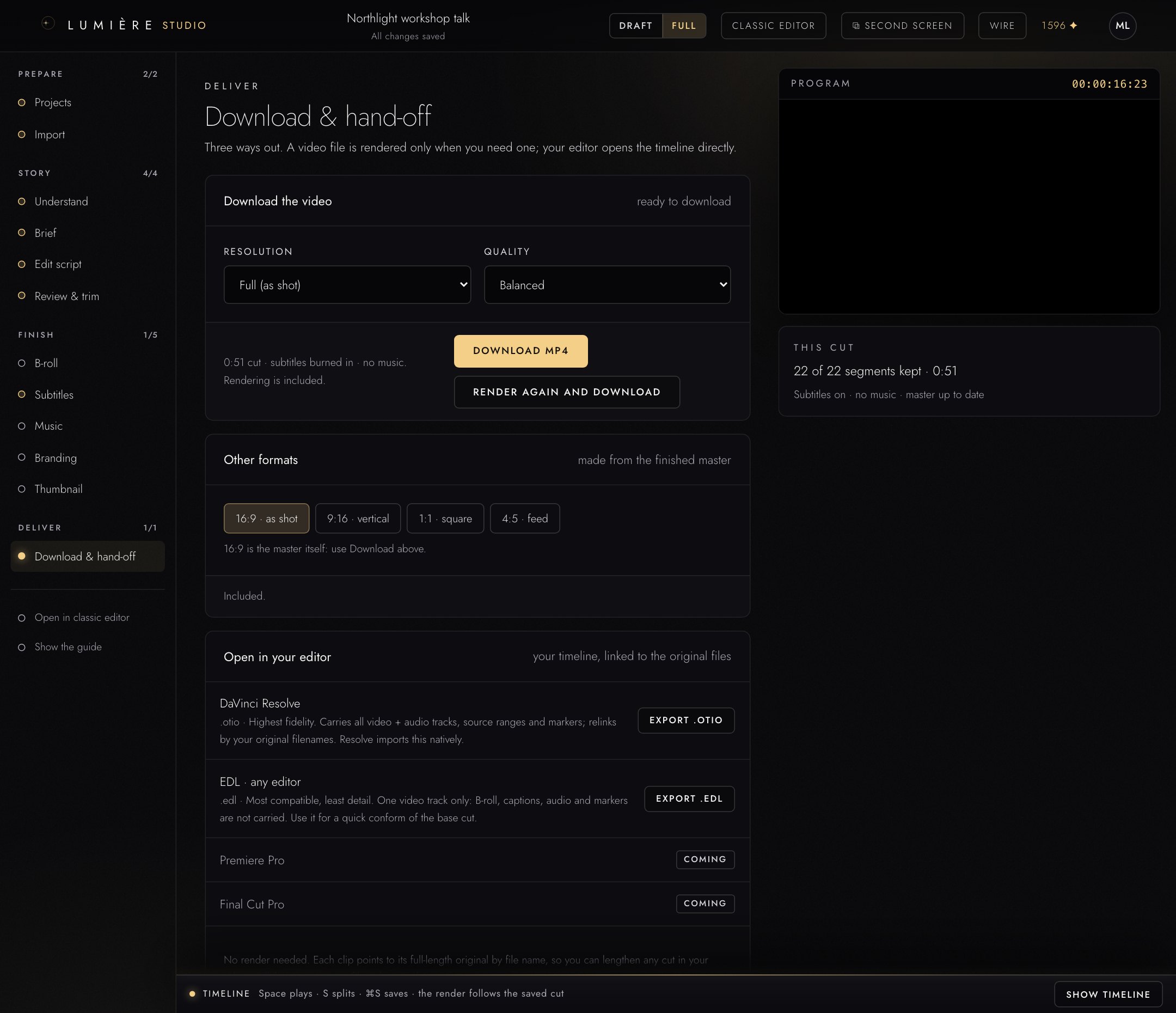
- Download the video: choose Resolution and Quality, then render and download.
- Other formats: vertical, square and feed versions of the finished video.
- Open in your editor: the timeline for your editing software, linked to your original files.
Download the video
- Choose Resolution: Full (as shot) or Half.
- Choose Quality: Balanced, High (slower) or Fast.
- Press Render and download. Rendering is included in your plan.
Rendering takes time, roughly in proportion to the length. Progress is live, and you can leave the page: the render keeps going. When it is done, press Download MP4. If you change the cut, subtitles, branding or music afterwards, Studio shows Render again and download.
Other formats
Versions for other screens, made from the finished video: 9:16 · vertical, 1:1 · square and 4:5 · feed. Pick a layout: Crop, Blurred fit or Split. Render the main video first; 16:9 · as shot is the main video itself. Included.
Open in your editor
Hand your cut to the editing software you finish in. No render is needed. Every clip points to its full-length original by file name, so you can extend any cut in your editor.
| Format | For | What you get |
|---|---|---|
| .otio | DaVinci Resolve | Highest fidelity: all video and audio tracks, source ranges and markers. Relinks to your original file names. |
| .edl | any editor | Most compatible, least detail: one video track only. B-roll, captions, audio and markers are not carried. Use it for a quick conform. |
| Premiere Pro, Final Cut Pro | Coming | Shown in the list, not available yet. |
Before a deadline, export a short test and check that it relinks.
Send to Compliance
Send to Compliance opens a new compliance job with this video already picked: the project’s latest render, or its source when nothing is rendered yet. Your Studio project is not changed.
Add your guidelines, then press Start scan. The price shows once the video has arrived from Studio: 1 ✦ per started minute, charged when the scan starts. See Start a compliance job.
AI-generated content
Some things Lumière makes are generated by AI: thumbnails, AI music and sound effects, generated clips and dubbed voices. Your own footage, and Lumière’s edits of it (cuts, subtitles, reframes, hidden passages), are not AI-generated material.
The invisible tag
Every file Lumière’s AI generates carries a machine-readable note inside the file that says it was made by AI. You do not see it, and it cannot be switched off. Dubbed videos are tagged as partly generated. A video you render is not tagged automatically; see the visible label below.
The visible label: your choice
Whether a generated clip shows a visible AI-generated label in your video is your decision, clip by clip.
When a generated clip enters your project, Lumière asks:
- Add a visible ‘AI-generated’ label to this clip adds the label. Not now leaves the clip without it.
- Tick Always label AI-generated clips automatically (change in Settings) to stop being asked and label every generated clip.
- Don’t remind me places generated clips without a label and stops asking.
You can change your mind at any time:
- On the timeline, generated clips carry an AI chip, which reads AI label when the label is on. Click the chip, or select the clip and press AI label in the toolbar, to switch the label on or off.
- In your account, Settings → AI-generated clips has Label AI-generated clips automatically (on: always label, no popup; off: Lumière asks each time) and Ask me again after a “Don’t remind me”. The owner also sets a Team default for everyone who has not made their own choice.
What the label does: a small AI-generated badge appears in the top-left corner of the picture, only while a labelled clip is in the picture. The rendered video then also carries the machine-readable note that it contains AI-generated material. Editor exports (.otio, .edl) carry the clips, not the badge. Dubs and covers are separate files: they carry the invisible tag, not a visible label.
When you publish AI-generated material, the platform you publish on may ask you to say so. Follow its rules.
Compliance
Check a video against your guidelines, decide every finding, measure loudness and hand over a report.
What Compliance does
Compliance checks whether a video says things that break the rules you were given: profanity, claims without a source, brand or sponsorship problems, content unsuitable for a time slot. It reads every word, flags what it finds, and you decide.
It also measures one technical value: loudness. Every scan measures the audio against the EBU R128 broadcast loudness standard and reports the result with a pass or fail.
What Compliance does not do: it does not correct loudness, and it does not check resolution, codecs, colour or file conformance. It is content compliance plus measured loudness, not a full technical quality control.
Compliance is included in every plan.
Start a compliance job
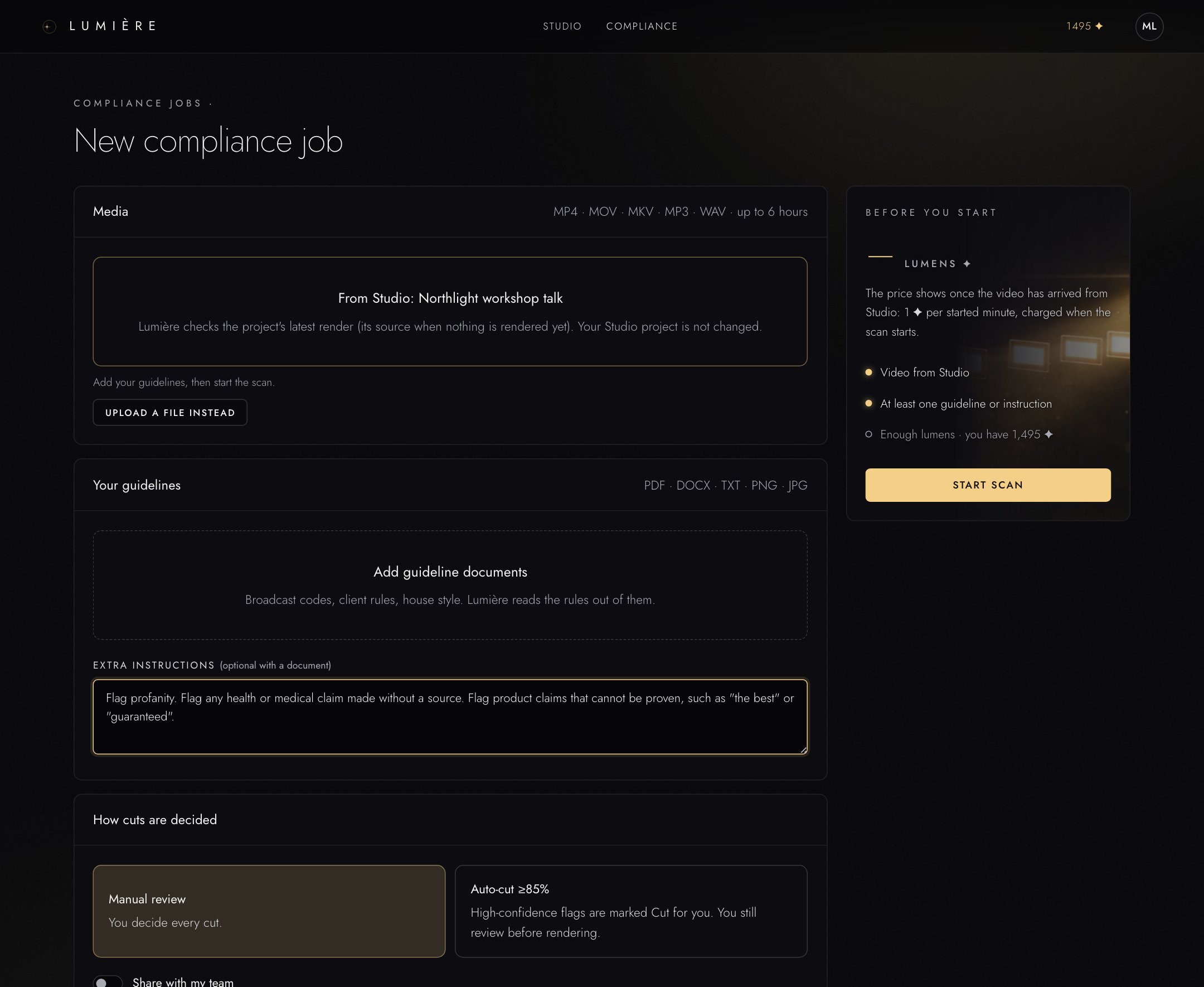
- Media: the video to check. Here it came from Studio with Send to Compliance. Otherwise drop a video or audio file, or click to choose one: MP4, MOV, MKV, MP3 or WAV, up to 6 hours.
- Add guideline documents: the rules as PDF, DOCX, TXT, or a picture of the page (PNG, JPG). Lumière reads the rules out of them.
- Extra instructions: rules in your own words. Optional when you add a document.
- How cuts are decided: Manual review or Auto-cut ≥85%.
- Start scan, with the price on the button.
To start a job:
- In Compliance, press New job. Coming from Studio? Press Send to Compliance in your project instead: the form opens with the video picked.
- Add the media file.
- Give it the rules: add guideline documents, type them under Extra instructions, or both.
- Choose how decisions are made:
- Manual review: you decide every finding.
- Auto-cut ≥85%: findings with a confidence of 85 percent or more are pre-marked for you. You still review before anything is rendered.
- Leave Share with my team on if your team should see the job.
- Check the price and press Start scan.
A scan needs guidelines. Without a document or typed rules, the scan does not start, and nothing is transcribed or charged.
Rules you type come back word for word: the rules you see in the job are your own sentences, which matters when someone checks the decision later. Rules taken from a document are summarised from it. Guidelines are added per job; there are no saved rule sets.
Price
A scan costs 1 ✦ per started minute, at least 1 ✦. The price is shown before you start and charged when the scan begins, not when you upload.
- If your balance is too low, Start scan asks you to top up first. Your file and settings are kept and the same job continues.
- Cancel job before the scan starts: nothing is charged.
- Cancel job during the scan: only the part already analysed is charged. The rest is refunded.
- Rendering a compliant master and re-verifying it cost nothing extra.
Review the findings
When the scan is done, the job opens in review.
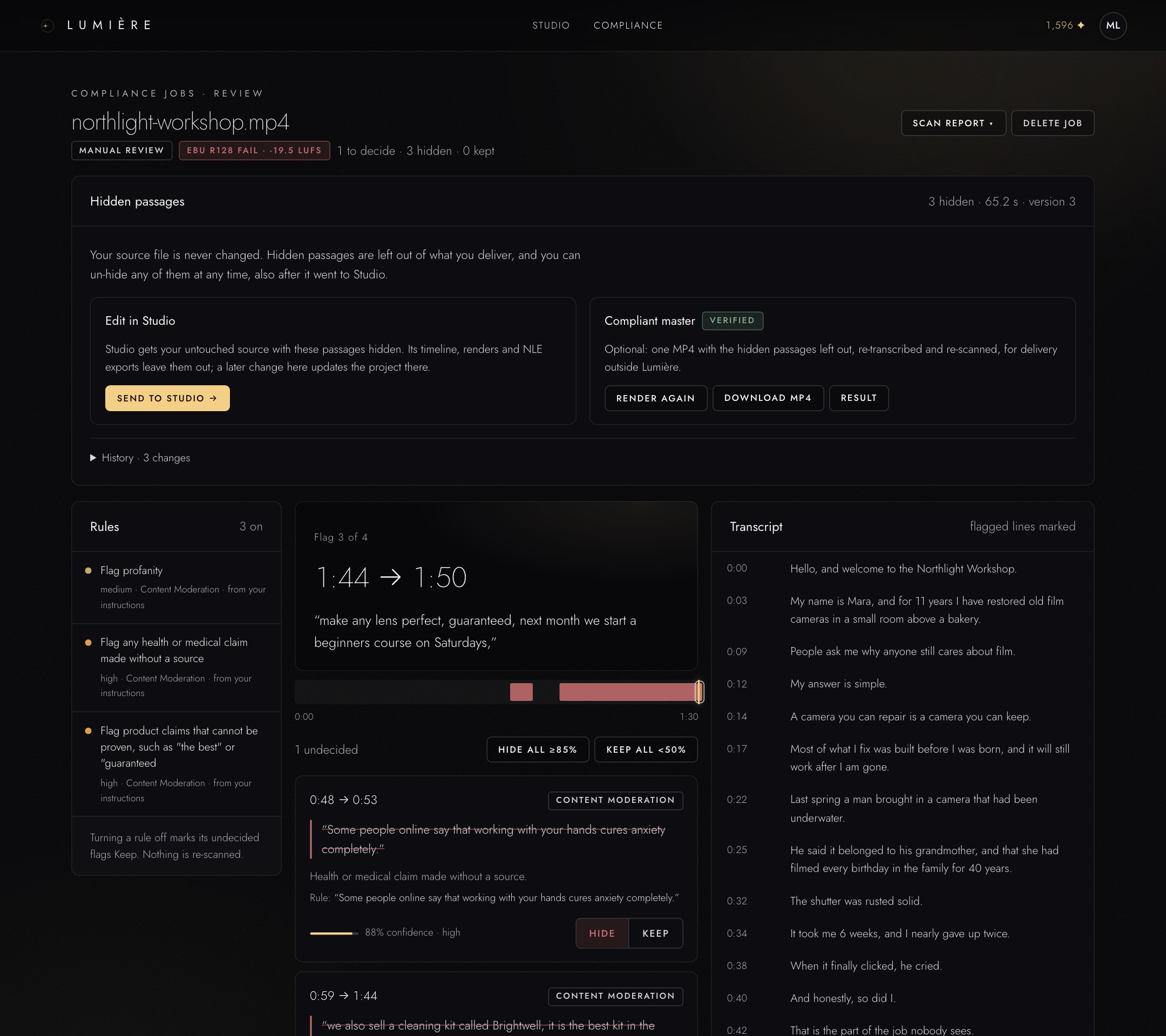
- The loudness result: EBU R128 pass or fail and the measured loudness.
- Scan report: download the report as PDF, DOCX or CSV.
- Hidden passages: what is left out, how long it is, and the version.
- Send to Studio: edit the checked video in Studio.
- Compliant master: an optional MP4 without the hidden passages.
- Rules: the rules the scan used. You can switch a rule off.
Each finding (a “flag”) shows the time range, who speaks, the quoted words, which rule it touches, the reason and how confident the system is, from 0 to 100 percent.
Every flag is a proposal. The decision is yours.
- Read the flag. Play the passage if you need to.
- Press Hide to leave the passage out, or Keep to leave it in.
- Move on with J (next) and K (previous). C hides, L keeps.
To decide many flags at once:
- Hide all ≥85% hides every flag with a confidence of 85 percent or more.
- Keep all <50% keeps every undecided flag below 50 percent.
Switching a rule off marks its undecided flags Keep. Nothing is scanned again.
Disagreeing is one click. Use it: a check that is never overruled is a check nobody is reading.
Hide passages, never cut
Lumière never cuts anything out of your file. Your original is never changed, moved or deleted.
A passage you hide goes on the job’s list of hidden passages. It is left out of everything you watch, render and export, but the footage is still there.
- To bring a passage back, press Keep on its flag. Lumière confirms with Visible again.
- You can un-hide at any time, also after the video went to Studio.
- History lists every change: which passage was hidden or un-hidden, when, and whether it was the automatic mode or you and your team.
Loudness
Every scan measures:
- Integrated loudness in LUFS, against the target of −23 LUFS (tolerance ±1).
- True peak in dBTP, against the maximum of −1 dBTP.
- Loudness range in LU, reported for information.
Pass or fail is decided on integrated loudness and true peak. The values appear in the job and in the PDF and DOCX reports.
Lumière measures loudness. It does not correct it. If a video fails, fix the mix in your audio or editing software and scan the new version.
Reports
Open Scan report to download the report as PDF, DOCX or CSV. It contains the summary, the rules, every flag with your decision, the history of hidden passages, the loudness measurement, and a warning if part of the audio could not be scanned.
The report is written when the scan reaches review and again with every master render. After you change hidden passages, render the master again to bring the report up to date.
A clean video gets a report too. Proving that a video passed is as useful as catching one that did not.
You can also download the transcript as SRT, TXT or JSON.
Compliant master and re-verification
If someone needs a finished file without the hidden passages:
- Press Render compliant master. If flags are still undecided, Lumière tells you that undecided passages stay in the master and asks whether to render anyway.
- Lumière renders one MP4 from the hidden passages as they stand, then re-transcribes and re-scans the result. The progress line says Re-transcribing and re-scanning the cut…
- The result is either Clean. Re-verified. or Not clean yet., with the status Verified or Not verified.
- Press Download MP4. The download appears once the master is verified.
The Re-verification panel shows the details: whether the master passed, when it was checked, how many passages and seconds were left out, the version of the hidden passages, and whether your source still matched its upload fingerprint. If the new scan finds something, each finding is listed with its time in the master and the approximate time in your source.
Audit manifest · JSON is a machine-readable record of the job: the source fingerprint, the rules, your decisions, what was left out and the re-verification result. It is written when the master is rendered.
If you change the hidden passages later, the master is marked Out of date. Press Render again. Rendering costs nothing extra.
Send to Studio
Send to Studio turns the checked video into a Studio project.
- Studio gets your untouched source with the hidden passages left out. Its timeline, renders and editor exports leave them out too.
- You do not upload again and nothing is transcribed again.
- When you hide or un-hide something later in Compliance, the Studio project follows.
It does not need a compliant master.
Preview player
The player in the job shows what you will deliver. With Skip hidden passages on, it jumps over everything you hid, so you hear and see the result before you render anything. Nothing is cut from your file.
Once the job went to Studio, Open in Studio takes you to that project.
Delete a job
Delete job removes a compliance job for good. Only the account owner or the person who started the job can delete it; a reviewer cannot.
- Open the job and press Delete job.
- Read the confirmation. It removes the job, the report, the findings, the hidden passages, the working files and your upload. Studio projects made from the job keep their own copy, and your lumen history is not affected.
- Press Delete for good. This cannot be undone.
Lumière never deletes a compliance job on its own: only temporary working files are removed after a scan.
Your account
Billing, top-ups, invoices, usage, spend limits, your team, settings, security.
Your account page has six areas in the side menu: Overview, Usage & billing, Devices, Team, Settings and Help & feedback. Owners and leads also see Bulletin, for notices to the whole team.
Some actions are for the owner of the account only: buying lumens, changing the plan, billing details, invoices and raising limits. If you are not the owner, the page tells you who to ask.
Billing details
Lumière needs your billing details before the first purchase, because every payment comes with an invoice.
- Open Usage & billing and find Billing details.
- Press Edit.
- Choose Individual or Company.
- Individual: first name, last name, email, phone (optional) and your address.
- Company: the company name, the EU VAT number and the company address. Hungarian companies also enter their Hungarian tax number.
- Press Save billing details.
The VAT number is checked against the EU’s VIES register. VAT is calculated from these details: consumers in the EU pay their country’s rate; a business with a valid EU VAT number in another EU country pays no VAT (reverse charge); customers outside the EU pay no VAT.
Buy lumens
Only the owner can buy lumens.
- Press Top up on the overview, or open Usage & billing → Top-up packs.
- Choose a pack: 100 ✦, 500 ✦ or 2,000 ✦. The price shown is the rate for your plan.
- The first time, accept the Terms of Service and billing terms. You are asked again only when those terms change.
- Pay by card. Payments are processed by Stripe; your card details never reach Lumière’s servers.
The lumens are added as soon as the payment is confirmed. The invoice appears under Payments & invoices. Packs never expire while you are subscribed.
As a consumer you can withdraw from a purchase within 14 days, see Your rights.
Payments and invoices
Payments & invoices in Usage & billing lists every payment with its amount, VAT and status. This list is for the owner.
- Each payment has its invoice as a PDF. Invoices are electronic invoices issued through számlázz.hu, as Hungarian law requires, and are kept for 8 years.
- Every refund comes with a corrective invoice.
- CSV downloads the whole list for your accounting.
- Attempts that were declined or expired are listed too. Nothing was charged for those.
Your usage
Usage this month shows where your lumens went, by task (for example drafting and compliance scans) and by app (Studio, Compliance).
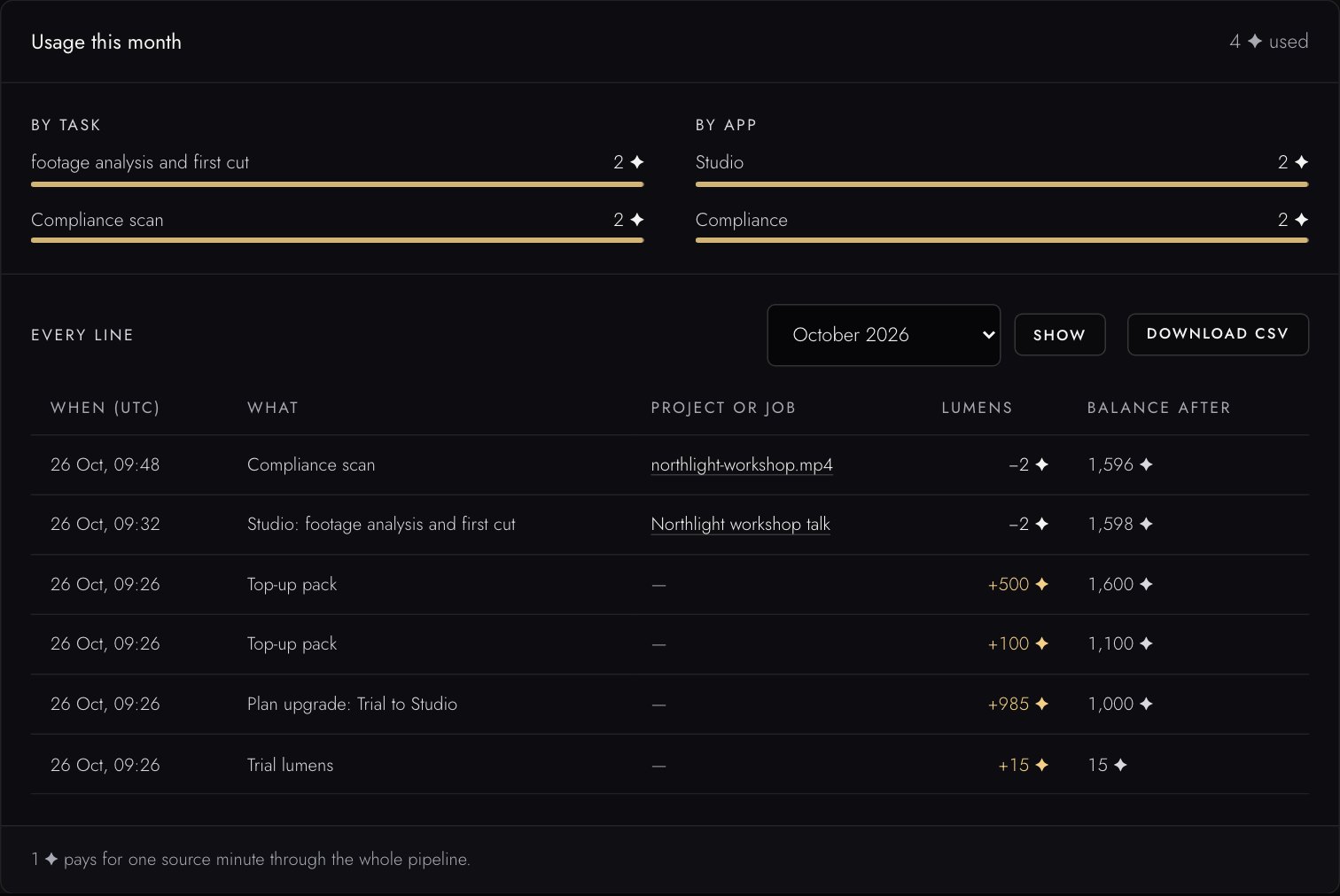
- Usage by task and by app.
- The month and Download CSV.
- Every line: each charge, refund and top-up with the project or job and your balance after it.
The itemised list shows every lumen line: when, what, which project or job, how many lumens, and the balance after. Pick a month and press Show, or Download CSV to keep it. Members see their own lines; the owner sees the whole account.
Spend limits
Limits stop one mistake from emptying the account (see Limits). The owner can raise them:
- Open Usage & billing → Usage limits.
- Raise the daily limit or the hourly AI generation limit, up to five times the plan’s default.
- Choose how long: For the next 24 hours or Until I change it.
The owner can change limits up to five times a day. A job above 500 ✦ always needs the owner to allow it once.
Team and roles
Studio includes 3 seats; Broadcast / Enterprise contracts set their own. Personal and Creator have one seat.
| Role | Can |
|---|---|
| Owner | Everything, including billing, buying lumens, limits and removing people. |
| Lead | Sees every project, manages seats, posts bulletins, invites members and reviewers. |
| Member | Edits the projects assigned to them. |
| Reviewer | Views, comments and approves assigned projects. Never edits, never spends lumens. |
To invite someone:
- Open Team and press Manage team.
- Enter their email address, choose a role and, if you like, a position.
- Press Send invite.
Invitations expire after 7 days. Pending invitations count as used seats.
Devices
Devices is where you download the Lumière desktop app and pair it with your account. See Lumière Local.
Settings
- Studio profile: a few questions about your work, so Lumière can suggest better defaults. Optional.
- Notifications (owner): the email address for invoices and account notices, and two switches: Product updates & release notes and Offers & product marketing. Press Save preferences.
- Privacy & agreement: the versions of the Terms of Service, the Acceptable Use Policy and the Privacy Policy you accepted, each with a Read link. Let Lumière showcase my creations is optional and you can change it at any time.
- Generation services (owner): the outside services that generate images, voices or music. Enable or Disable each one. Lumière charges for them in lumens, with the price shown before every run. Disabling stops future use; work already delivered is not refunded.
- AI-generated clips: whether AI-generated clips get a visible label automatically. See AI-generated content.
- Export everything: see below.
- Explainers & help: the short notes that explain each button, see Explainers. Language for explainers and help offers 32 languages; Show explainers is on unless you switch it off. Only these notes change language: your footage, transcripts and subtitles keep their own, and buttons keep their English names. Every seat sets its own.
- Manual: this manual, online or as a PDF. It opens in your explainer language when the manual exists in it, otherwise in English.
The app’s screens and buttons stay in English. The explainers come in 32 languages, this manual in English, Hungarian and German.
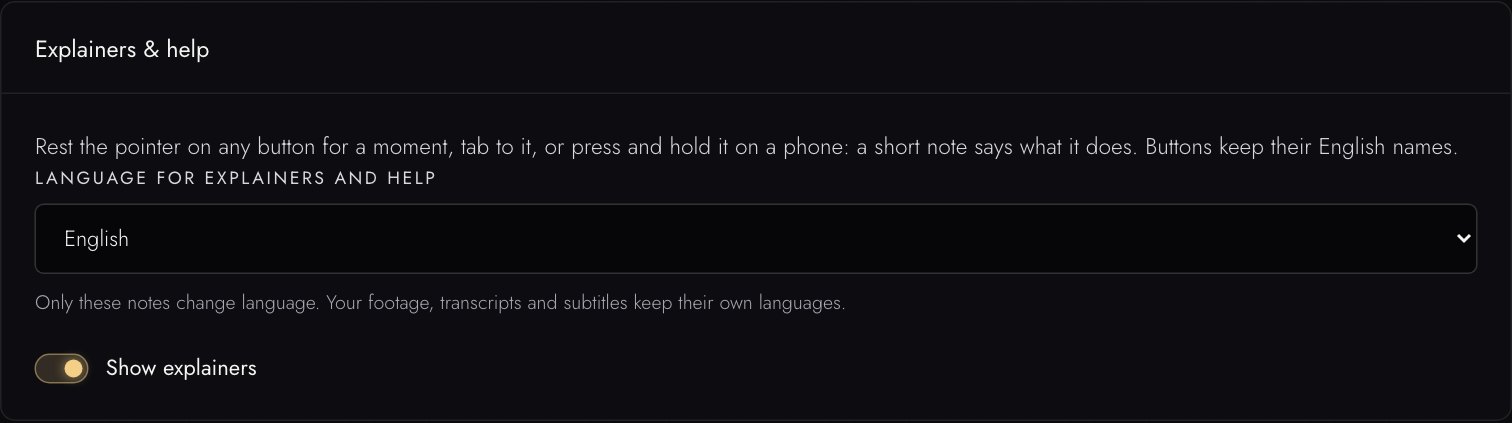
- Language for explainers and help: 32 languages.
- Show explainers: on unless you switch it off.
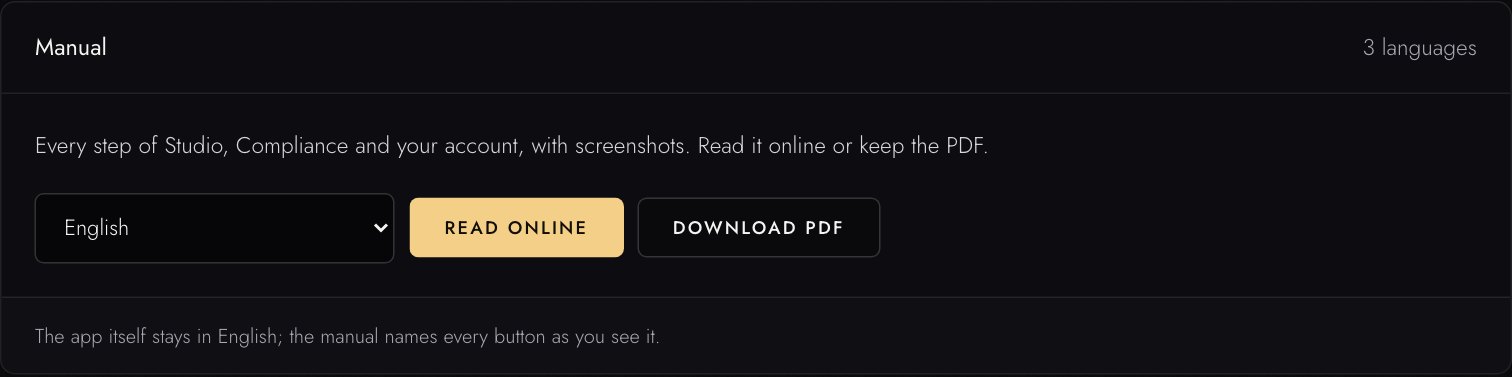
- Choose the language of the manual.
- Read online opens it on lumiereapps.com.
- Download PDF saves it.
Export everything
The owner can download all of the account’s data, free of charge.
- Open Settings and find Export everything.
- Press Export everything.
- Lumière prepares one archive and emails you when it is ready, usually within a few minutes.
- Download it from the email or from the same panel. The download and the media links work for 7 days.
The archive holds your account data, payments and invoices, lumen usage, every Studio project and Compliance job (data, transcripts, reports), and a list of your media files with download links. It is machine-readable (JSON and CSV). You can ask for up to five exports a day, one at a time.
Delete your data
- A Studio project: Delete in Studio removes its footage, transcript, cut and renders. See Delete a project.
- A compliance job: see Delete a job.
- Your whole account and all its data: write to support. A person handles it. Closing your account yourself Coming is not available yet.
Lumière keeps your projects and jobs until you delete them. It never deletes them on its own; only temporary working files are removed after processing.
Sign-in and security
- Sign out: open the menu under your initials in the top bar.
- A session lasts 30 days and renews while you use Lumière.
- After 10 failed sign-in attempts in 15 minutes, the account is locked for 15 minutes.
- Use a password you do not use anywhere else. Lumière has no two-step sign-in at the moment.
Reset your password
- On the sign-in page, press Forgot password?
- Enter your email address and press Email me a link.
- Open the link within 45 minutes. It works once.
- Choose a new password and press Save new password.
Saving a new password signs you out on every device. Paired desktop apps stay paired.
Lumière Local and LumiVision
Keep footage on your own computer, and the add-on for a whole archive.
Lumière Local Early access
You do not have to install anything. Lumière runs in the browser on any computer, phone or tablet. Install the desktop app only if footage must never leave your computer.
With the desktop app paired, your computer does the heavy work (reading the file, transcribing, rendering). Only the transcript, which is text, travels to the cloud, about 0.4 MB per hour of footage. The AI reads the transcript, never the picture or the sound.
This applies to footage you import On my Mac. Footage you upload in the browser is processed on Lumière’s servers in the EU.
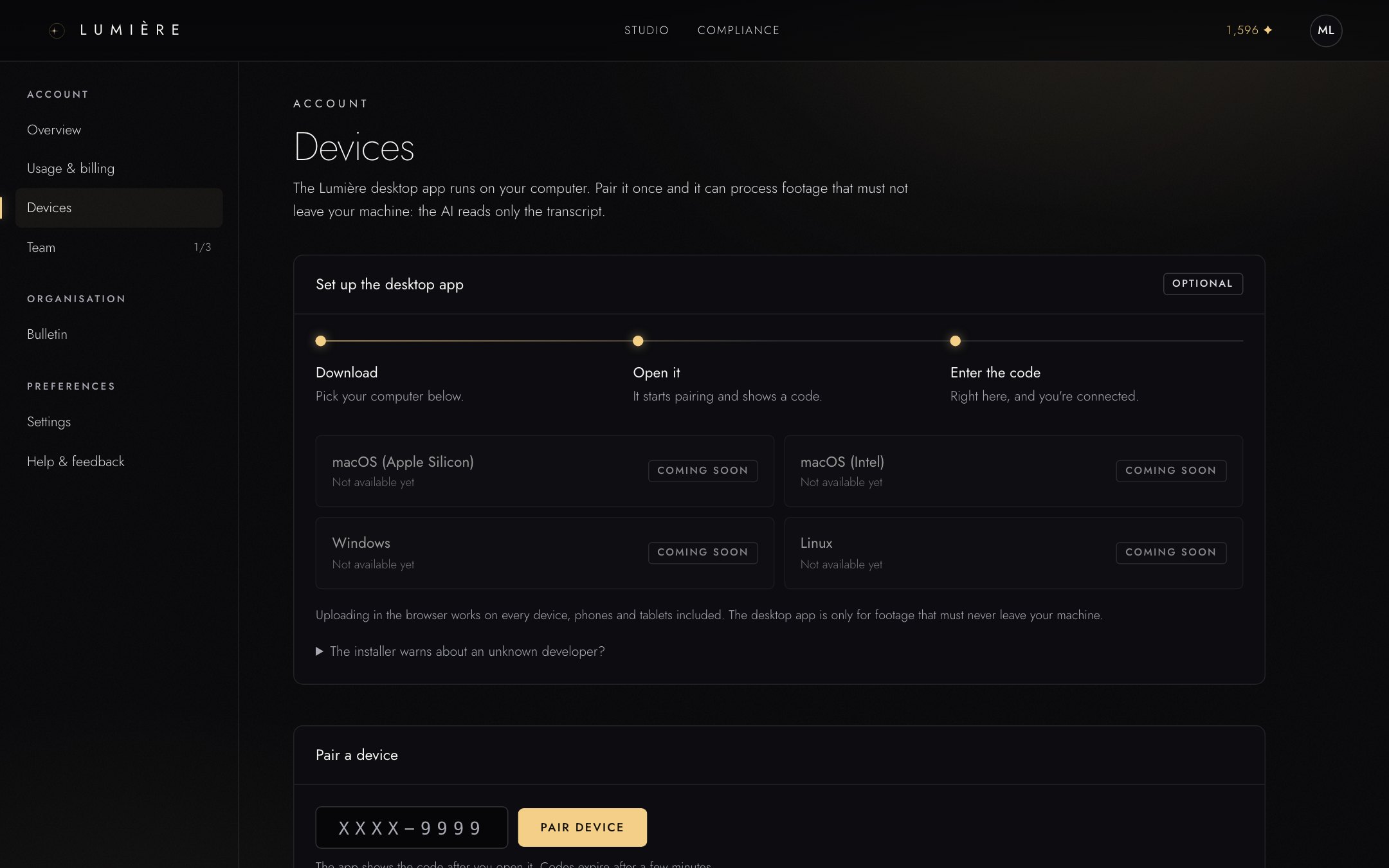
- Set up the desktop app: the download for your computer.
- Pair a device: type the code the app shows.
- Your devices: every paired computer, with Rename and Revoke.
Install and pair
- Open your account and go to Devices.
- Under Set up the desktop app, press Download next to your computer: macOS (Apple Silicon), macOS (Intel), Windows or Linux. A platform marked Not available yet has no download at the moment.
- Open the download. It starts pairing and shows a code like
ABCD-1234. - Back on Devices, type the code under Pair a device and press Pair device. Codes expire after a few minutes; open the app again for a fresh one.
The device now shows under Your devices, with connected while the app is running. Revoke disconnects it at once.
Your computer warns about an unknown developer
The installers are not code-signed yet, so your operating system cannot verify the publisher and blocks the file. The download is genuine only because you fetched it from your own Lumière account. Do not open a Lumière installer that reaches you any other way, for example by email.
- macOS: open System Settings → Privacy & Security, scroll to Security and press Open Anyway next to the blocked file. macOS may say the file is damaged. It is not: that is the wording macOS uses for an unsigned download.
- Windows: in the blue SmartScreen window, press More info, then Run anyway. Your antivirus may also object; allow the file.
- Linux: no warning. Extract the download with
tar xzfand run./install.sh.
Import on your computer
- Make sure the desktop app is running.
- In Studio, open Import and choose On my Mac.
- When Studio shows Desktop app found, press Open the local import. The local import runs in the classic editor for now.
LumiVision (add-on)
Studio and Compliance work on one video at a time. LumiVision works on a whole archive: it builds one library over your organisation’s footage, wherever it is stored.
What it does:
- A library with a summary, chapters and a searchable transcript for every analysed video.
- Ask this video: questions answered from that video only.
- Collections: group videos by hand, or automatically by category or tag.
How it treats your files:
- Your files stay where they are. LumiVision reads them from a folder on a computer with the desktop app, or from a server over SFTP (for example a NAS). Nothing is copied to Lumière’s storage.
- Connecting is not analysing. Connecting a folder only lists the files. Nothing is analysed until you press Analyse on a file or folder. That press is your consent, and it is logged.
- Face recognition is off and not offered.
LumiVision is a paid add-on, included with Broadcast / Enterprise. An administrator switches it on for your organisation; ask us if you want it.
Opening a LumiVision finding directly as a Studio project Coming is not available yet.
Troubleshooting and FAQ
What a message means and what to do about it.
When something goes wrong
Lumière’s messages say what actually happened. Read them; they usually name the fix.
| What you see | What it means | What to do |
|---|---|---|
| Studio and Compliance stay closed after sign-up | Your email is not confirmed yet. | Open the link in the confirmation email, or press Resend email in the banner. |
| Not enough lumens or a top-up window | The job costs more than your balance. Nothing was charged. | Buy a pack in the window and the job continues. On a team, ask the owner. |
| Only the org owner can buy lumens | You are not the owner. | Ask the owner named in the message to top up. |
| A daily or hourly limit is reached | A spend limit held back a new job. | Wait, or ask the owner to raise the limit under Usage limits. |
| Charges are paused for a few minutes | Very many charges in a short time. | Wait until the time shown. It cannot be overridden. |
| The upload fails | Usually the network. | Choose the files again. Nothing was charged. |
| The draft found nothing usable | Your brief and your footage did not meet. | Widen the brief and draft again. That run was not charged. |
| Transcription does not start | Your balance is at zero. | Press Transcribe · free, or top up. |
| Subtitles appear twice | Your source already had subtitles burned in. | Turn off Burn subtitles into the video and deliver a separate file. |
| The download is 16:9 but you wanted vertical | The main download is the video as shot. | Make the 9:16 version under Other formats. |
| Render again appears | You changed the cut, subtitles, branding or music after the render. | Render again to get a file with your changes. |
| The desktop app isn’t answering | The app is not running, or not paired. | Start it and press Check again, or pair it under Devices. |
| A compliance scan does not start | It has no guidelines yet. Nothing was transcribed or charged. | Add a guideline document or type the rules under Extra instructions, then press Start scan. |
| A compliance master is Out of date | You changed hidden passages after rendering. | Press Render again. |
| A job shows failed with a sentence | Exactly what the sentence says. | Fix that thing. If it is unclear, ask the help chat and quote the sentence. |
If you are stuck, open the help chat and give it the project name and the step.
Frequently asked questions
Do I pay for re-editing?
No. Once your footage is in, Review & trim, text edits, subtitles, translation, music, branding, rendering and exports are free. Each new draft with Draft the cut or Redraft the cut costs lumens again, except the draft right after one you stopped.
Does Lumière change my original file?
No. Your original is never changed, moved or deleted. Compliance hides passages instead of cutting them, and Studio cuts are instructions on a timeline.
Is my footage used to train AI?
No. Your footage, transcripts and projects are not used to train models.
Where is my footage stored?
Uploads are stored on Lumière’s servers in the EU. With Lumière Local, footage stays on your computer and only the transcript is sent.
How long are my projects kept?
Until you delete them. Lumière does not delete projects or compliance jobs on its own. Only temporary working files are removed after processing.
Can I use Lumière on a phone or tablet?
Yes, in the browser. Uploading and your account work on phones and tablets too. For editing, a larger screen is more comfortable. The desktop app is for computers only.
Can I add colleagues?
Yes, on Studio (3 seats) and Broadcast / Enterprise. See Team and roles.
How do I cancel my plan?
Write to us. Cancelling from your account Coming is not available yet.
Is the app available in my language?
The buttons and screens are in English. The explainers, the short notes on every button, come in 32 languages: choose yours under Settings → Explainers & help. This manual is available in English, Hungarian and German, the help chat answers in your language, and subtitles can be translated into 32 languages.
Your rights and legal documents
A plain-language summary, with links to the binding documents.
This chapter summarises your rights in plain words. It is not the legal text. The binding documents are the live, versioned ones linked at the end of this chapter, and they take precedence over this summary.
Withdrawal (consumers)
If you buy as a consumer (for yourself, not for a business), you can withdraw from a purchase within 14 days without giving a reason. This covers a pack, the start of a plan, and an upgrade. It does not cover a renewal.
To withdraw:
- Open Usage & billing and find Withdraw from contract.
- Press Withdraw from contract next to the purchase.
- Confirm the contract, your name and the email address for the receipt, then press Confirm withdrawal.
You receive a receipt on screen and by email, with a reference that starts with W-. A person then issues the refund.
You can also write to hello@lumiereapps.com and name the purchase. The details are in the Terms of Service.
Complaints
If something went wrong and you want it looked at formally:
- Open Help & feedback and find Make a complaint.
- Enter a subject and your complaint, then press Send complaint.
- You receive a reference that starts with C- by email.
You get a written answer within 30 days. Complaints and answers are kept for three years.
Reporting illegal content
If you find content made or shared with Lumière that you believe is illegal, report it on the Report content page. It is also linked in the footer of lumiereapps.com. You do not need an account. Describe where the content is and why you think it is illegal. You receive a reference that starts with R-.
Privacy and your rights
Lumière processes your data to provide the service, as the Privacy Policy describes. In short:
- Your data is stored in the EU and travels encrypted (HTTPS).
- Your footage, transcripts and projects are not used to train AI models.
- You can ask to see the data Lumière holds about you, to correct it, to delete it, to receive it in a machine-readable form, and to object to or restrict some processing.
- You can complain to a data protection authority. The Privacy Policy names it.
To use these rights, write to hello@lumiereapps.com. Full deletion of an account is handled by a person.
Businesses that need a data processing agreement (DPA) can ask for one: write to us.
Your data export
You can download all of your account’s data at any time, free of charge. See Export everything.
Invoices
Every payment comes with an electronic invoice and every refund with a corrective invoice. They are in Usage & billing → Payments & invoices and are kept for 8 years. See Payments and invoices.
The legal documents
Each document shows its version and date. When a document changes, Lumière asks you to accept the new version.
Contact
- Help chat: Help & feedback → Open help chat in your account.
- Email: hello@lumiereapps.com
Glossary
The words you will see in Lumière.
| Word | Meaning |
|---|---|
| Lumen ✦ | Lumière’s one unit. 1 ✦ pays for one started minute of source footage through the whole pipeline. Compliance scans use the same arithmetic. |
| Allowance | The lumens your plan adds every month. |
| Pack | Lumens you buy on top of your plan: 100, 500 or 2,000 ✦. |
| Owner | The person who holds the account. Only the owner buys lumens and manages billing. |
| Seat | One person on a team plan. |
| Brief | One or two sentences that say what the piece is about, who it is for and how long it is. |
| Format | A set of editing conventions, such as a short social reel or a documentary. Read from your brief. |
| Draft | The first cut Lumière builds from your brief. |
| Edit script | The story as readable beats, with the reason for each. Plans titles and B-roll. |
| Segment | One piece of the cut that you can keep or drop. |
| Transcript | Every spoken word, with timings. Everything else builds on it. |
| Text trim | Editing the video by striking words in the transcript. |
| Timeline | The cut shown clip by clip, video and sound. |
| Program monitor | The player that shows the current cut. |
| B-roll | Cutaway footage shown over the main sound. |
| Ducking | Lowering the music automatically under speech. |
| Burn-in | Subtitles that are part of the picture and cannot be switched off. |
| SRT | A common subtitle file format. |
| Reframe | Making a version of the video for another screen shape, such as vertical 9:16. |
| Render | Producing the finished video file. |
| Master | The finished video file. In Compliance, the compliant master leaves out the hidden passages. |
| OTIO | Open Timeline IO, the timeline format DaVinci Resolve opens. |
| EDL | Edit decision list: a simple timeline format that almost every editor reads. |
| NLE | Non-linear editor: editing software such as DaVinci Resolve. |
| Flag | One possible compliance problem, with a time range, the quoted words and a rule. |
| Confidence | How sure Lumière is that a flag is a real problem, in percent. |
| Hidden passage | A stretch of video that Compliance leaves out of what you deliver, without changing your file. |
| Re-verification | Transcribing and scanning the compliant master again to confirm it is clean. |
| LUFS | The unit of measured loudness. EBU R128 aims for −23 LUFS. |
| True peak (dBTP) | The highest level of the audio signal. EBU R128 allows at most −1 dBTP. |
| EBU R128 | The European broadcast loudness standard. |
| Lumière Local | The desktop app that keeps footage on your computer and sends only the transcript. |
| Pairing code | The short code that links the desktop app to your account. |
| LumiVision | The add-on that builds one library over a whole footage archive. |